![lumina learning logo rev white.png]](https://support.luminalearning.com/hs-fs/hubfs/lumina%20learning%20logo%20rev%20white.png?height=39&name=lumina%20learning%20logo%20rev%20white.png)
Info: You can use Lumina Team to create a team of Participants who have completed the Lumina Spark questionnaire and have a paid-for Spark Full Portrait.
Quick links
How to view existing Teams and create a new Team
Full Lumina Team walkthrough: how to edit, share and export Team data
How to view existing Teams and create a new Team
1. Sign in
Go to sso.luminalearning.com and enter your account details.
If you can't remember your password, select Forgot password? and follow the instructions. For more help, see How to reset your password.
2. Go to Lumina Services
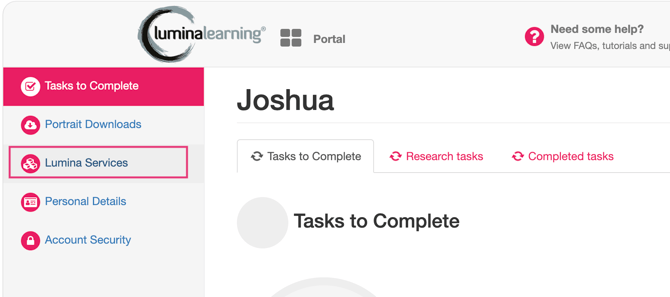
Select Lumina Services in the left-hand menu.
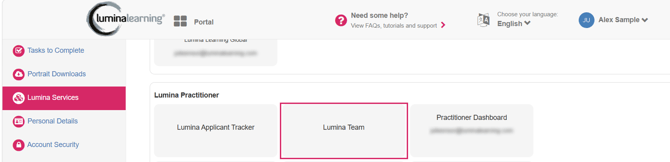
3. Open Lumina Team
Select the Lumina Team button.
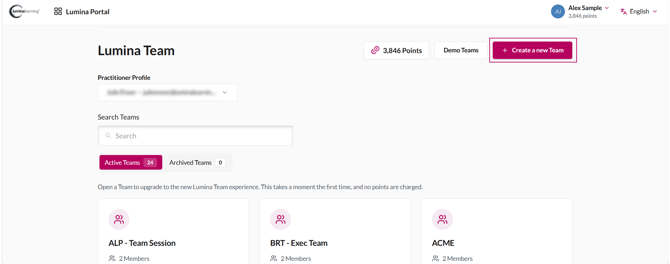
4. View your Teams or create a new one
You'll see all existing Teams if you have created any previously. Select a Team to open it.
To create a new Team, select + Create a new Team.
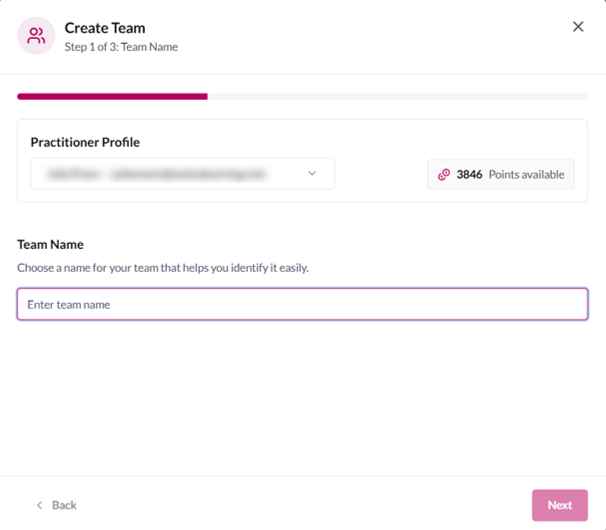
5. Name your Team
Select Enter Team Name and type a name for your new Team.
6. Add Participants
You'll see a list of available Participants. Select the Participants you want to add to your Team.
To find Participants more quickly, you can:
- Search by name or email address
- Filter by organisation
- Filter by project
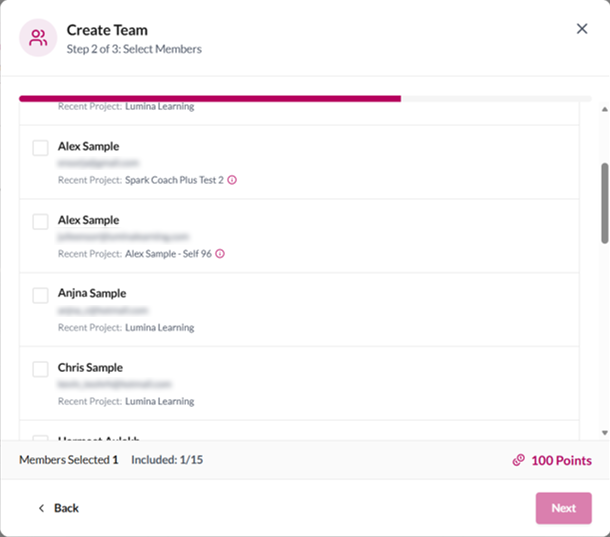
Note: If a Participant has completed the questionnaire in more than one project, you can choose which project to add them from. Projects are listed with the most recent first.
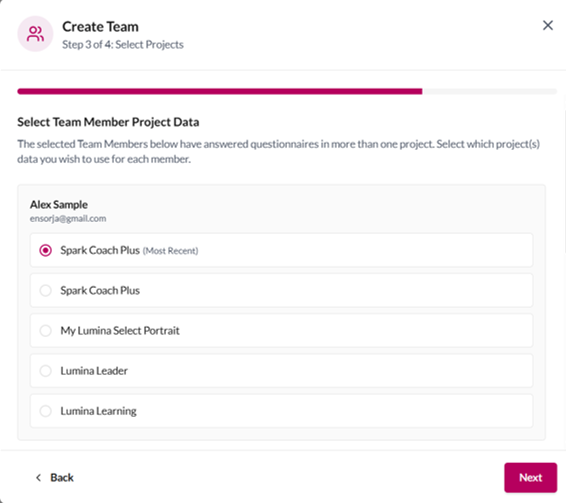
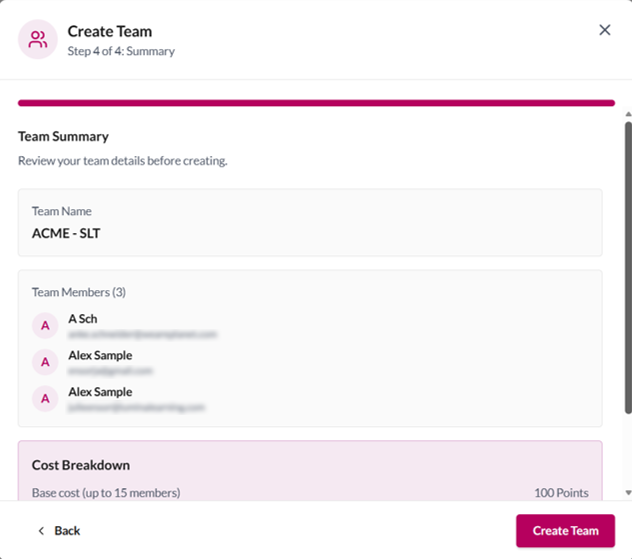
7. Review and create your Team
A summary screen shows the Participants you've chosen and how many points the Team will cost. Select Create Team to create your Team.
Pricing
- A Team of up to 15 members costs 100 points. If you add members after creating a Team, you won't be charged again as long as the Team still has 15 members or fewer.
- Each member beyond 15 costs 10 points per person. For example, a Team of 17 members costs 120 points (100 + 20).

Full Team walkthrough: how to edit, share and export Team data
This video covers:
- Sharing a Team and managing who has access - 0:17
- Managing Team permissions - 1:05
- Exporting your Team results - 2:14
- Accessing the Splash Gallery and QR codes - 2:31